







The most successful tool that has managed to become the majority's choice for analysis and statistics on websites is Google Analytics. We can also use Google Analytics on our WordPress site. However, to do this, we need to add the WordPress Google Analytics code. WordPress Training In this article in our series, we will talk about the process of adding Google Analytics to WordPress.
Adding Google Analytics to WordPress
First, we must have an account and data flow in Google Analytics. Google Assuming that you have created the Analytics account, we will skip this step. If you have not created one, you can create a new account with help from our article Google Creating an Analytics Account. Namely, to add Google Analytics to WordPress, we first need to get the necessary code from the data flow we created in Google Analytics 4. How do we do this?
Step 1) Finding the Analytics Data Stream
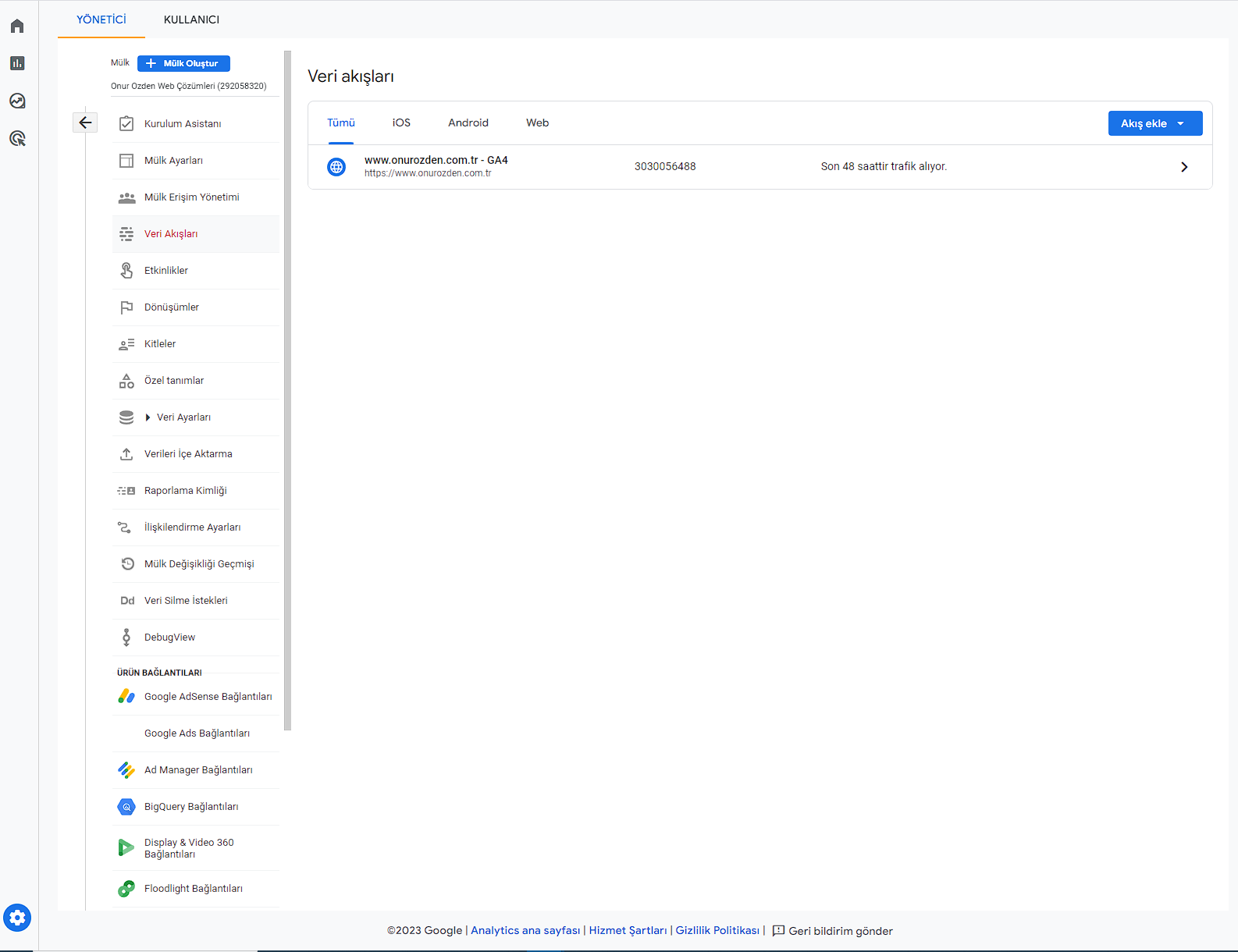
First, we click on the "Admin" button at the bottom left in our Analytics panel. Then we go to the "Data Streams" menu. We will be greeted by a page listing our data flows as below. If we don't have a data stream, we create a new one. After finding our data flow as shown in the screenshot, let's move on to the next step.
Step 2) Analytics Data Flow Details
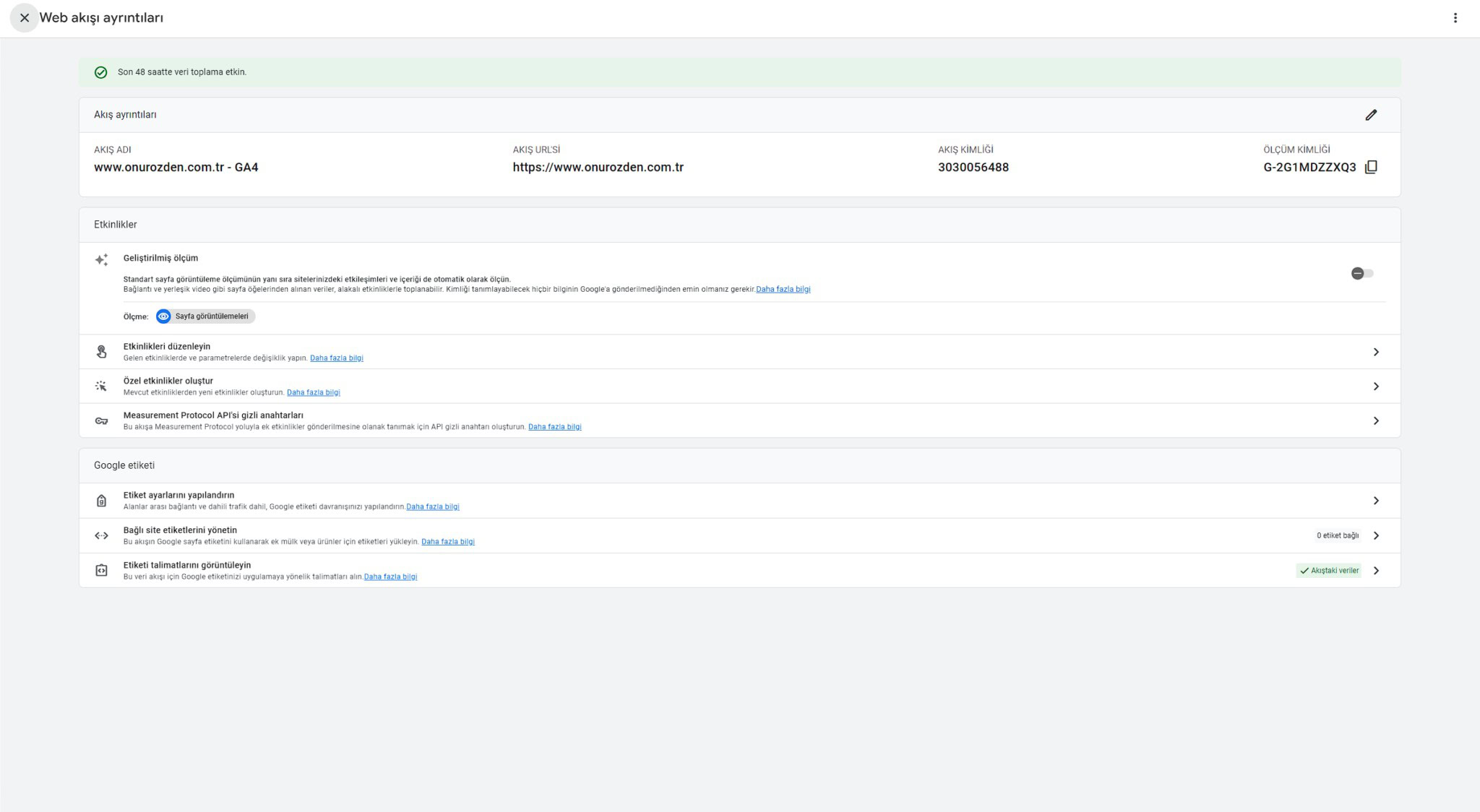
Now that we have found the target, we will click on the data stream and get the details. When you click on the data flow box, you should see a view similar to this.
Step 3) Getting Analytics Code from Data Feed
We will select the "View tag instructions" menu on the detail page to get the Google Analytics 4 code that we will add to our site. After doing this, we will encounter a page with codes and instructions. The last step we need to do on this page is to click on the "Manually install" tab to get the code. After our last operation, we will see codes like the picture below. Let's copy all the codes with one click using the "copy" button on the top right.

Step 4) Install Code Management Plugin
We will install a code management plugin on our WordPress site that allows us to add and manage special code such as "Header Footer Code Manager", "Code Snippets Pro, "WPCodeBox 2". We recommend the "Header Footer Code Manager" plugin, which is the best free plugin. You can install the plugin on your WordPress site by typing "Header Footer Code Manager" in the plugin adding section and clicking the install button from the results. Alternatively, you can download it from the official WordPress page and install it as a zip file. To download the plugin visit this link: https://wordpress.org/plugins/header-footer-code-manager/
Step 5) Install Google Analytics
We are now ready to install Analytics. After activating the Header Footer Code Manager plugin, we open the new code adding page by clicking on the "New Snippet" option from the HCFM menu on the left side bar in our admin panel. We can write a code-descriptive title in the title of the code snippet, such as "Google Analytics 4". Then we add our Analytics codes to the "Snippet / Code" section and click the "Save" button and save it. If there is a cache plugin on the site, we clear the cache. If we use a server or CDN service such as Cloudflare, BunnyCDN, FlyingCDN, we also clear the cache from those layers. Our Analytics is ready to go!
BONUS: Why You Should Never Use Google Site Kit Plugin
As bonus content of our article, we will explain “why we should never use the Google Site Kit plugin”.
Yes, wordpress plugins can be quite successful, even though it is not possible to do some operations without plugins. But let's face it, it is necessary to have basic knowledge of the code system, even without being at an advanced level. And the Google Analytics code actually just calls a few files and consists of a certain number of lines of code.
So why don't we recommend the Google Site Kit plugin? Let's explain right away. Google When you install the Site Kit plugin, dozens of large files, libraries and codes are uploaded to our site. The worst part is that these are largely unnecessary. Naturally, the installation causes a significant loss in site performance and brings with it potential security risks. No matter where we hold it, it will be a problematic decision.

Of course, we are not alone in this thought. After all, acting with assumptions and personal thoughts in the digital world may not always yield correct results. Google A few posts from the largest global platforms on Site Kit Security:
Google A few posts from the largest global platforms on Site Kit Security:
Wordfence -> https://www.wordfence.com/blog/2020/05/vulnerability-in-google-wordpress-plugin-grants-attacker-search-console-access/
With Google -> https://sitekit.withgoogle.com/news/security-patch-in-site-kit-upgrade-now/
Acunetix -> https://www.acunetix.com/vulnerabilities/web/wordpress-plugin-site-kit-by-google-security-bypass-1-7-1/
Search Engine Journal -> https://www.searchenginejournal.com/google-site-kit-vulnerability/367970/
In summary, we should not use the Google Site Kit plugin to avoid a decrease in site performance and to reduce the risk of potential security vulnerabilities that may be discovered in new versions of the plugin and negatively affect our site.
Professional Consultancy Opportunity from WordPress Expert
If you do not want to deal with WordPress plugins and your dream is to have site traffic that everyone can praise and a website that opens at jet speed, we are here to make it happen. More than 5 years of experience, hundreds of positive reviews. Onur Özden Web Çözümleri is 1 click away.